

- Services

Getting to know us
- Industries
Recent case study:
Oracle EBS Cloud Deployment
Consolidating and Migrating assets into Oracle Cloud Infrastructure.
.png?width=250&name=stonewater-logo%20(1).png)
Most Visited Pages
-
- Resources
DSP-Explorer acquires leading Oracle Applications Managed Services Provider, Claremont, to further extend its data management capabilities.

Resources
- Contact us
Building a Multi-Tool OCI AI Agent with Routing and Data Retrieval
Contents
Introduction
A single OCI Generative AI Agent can answer questions from your database tables and documents and choose the right source on its own. This blog builds that agent: a single agent with two tools, a SQL tool for structured project data and a RAG tool for development guidelines, plus routing instructions that decide which tool handles each question.
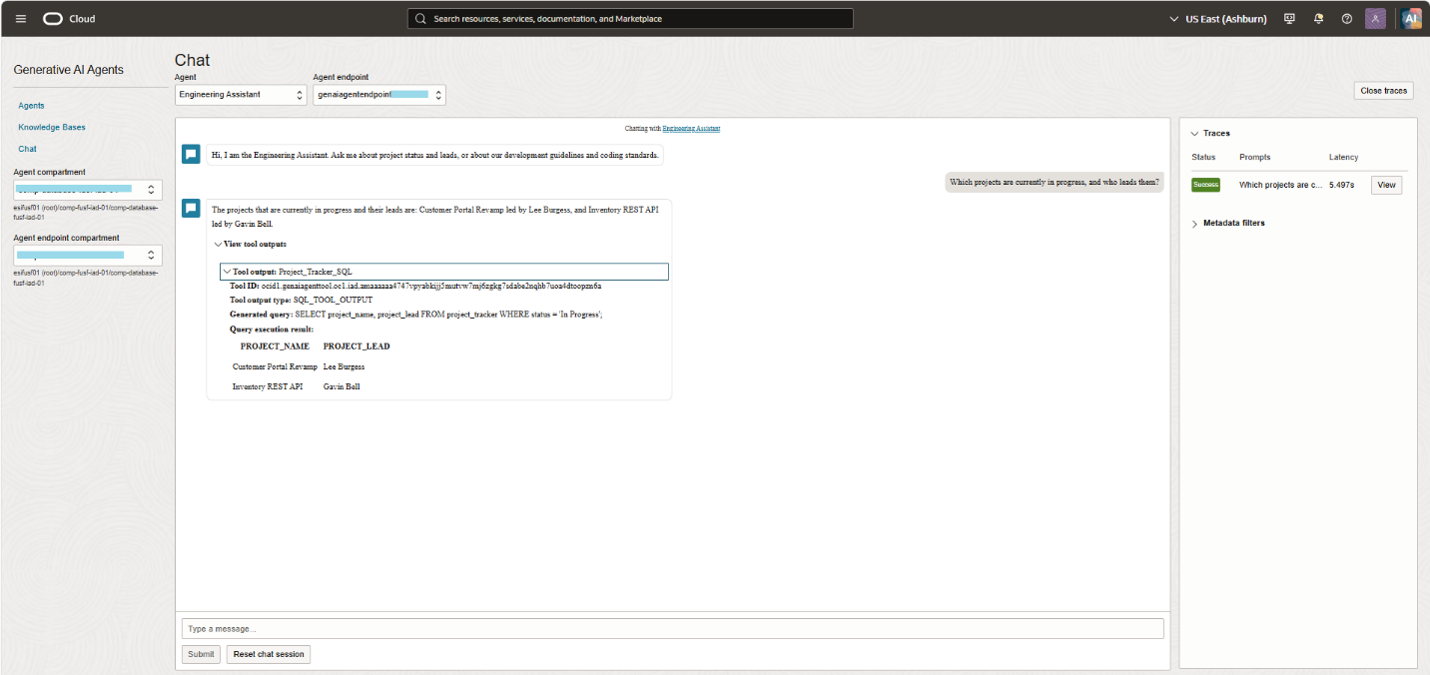
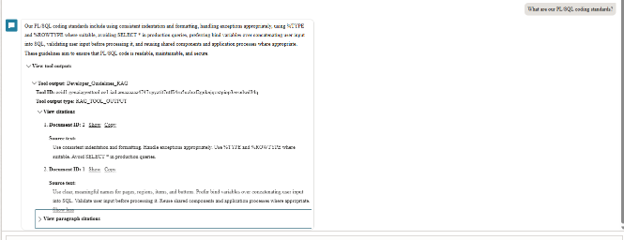
Our running example is an internal engineering team. Ask "Which projects are delayed and who leads them?" and the agent generates and runs a SQL query against a Project Tracker table. Ask "What are our PL/SQL coding standards?" and the agent retrieves matching guidelines through vector search. Ask both in one message, and it uses both tools.
Prerequisites
-
An Oracle Autonomous AI Database running version 23ai or above (vector search requires 23ai).
-
An OCI account with access to Generative AI Agents, Database Tools and the IAM policies.
-
The database wallet file downloaded from your Autonomous AI Database.
-
An ONNX embedding model loaded into the database (covered in Step 2).
Step 1: Create the Sample Data
The agent needs two data sources, so we will create two tables. PROJECT_TRACKER holds structured project data that the SQL tool will query. DEVELOPER_GUIDELINES holds text documents that the RAG tool will search by meaning.
Create the Tables
CREATE TABLE project_tracker (project_id NUMBER GENERATED ALWAYS AS IDENTITY PRIMARY KEY,project_name VARCHAR2(200) NOT NULL,project_lead VARCHAR2(100) NOT NULL,status VARCHAR2(30) NOT NULL,start_date DATE,end_date DATE);CREATE TABLE developer_guidelines (guideline_id NUMBER GENERATED ALWAYS AS IDENTITY PRIMARY KEY,title VARCHAR2(200) NOT NULL,content CLOB NOT NULL,embedding VECTOR);
Insert Sample Projects
INSERT INTO project_tracker (project_name, project_lead, status, start_date, end_date)VALUES ('Customer Portal Revamp', 'Lee Burgess', 'In Progress', DATE '2026-06-01', DATE '2026-12-15');INSERT INTO project_tracker (project_name, project_lead, status, start_date, end_date)VALUES ('Invoice Automation', 'Colin Archer', 'Completed', DATE '2026-01-10', DATE '2026-05-30');INSERT INTO project_tracker (project_name, project_lead, status, start_date, end_date)VALUES ('HR Onboarding App', 'Michael Pickering', 'On Hold', DATE '2026-03-01', DATE '2026-09-30');INSERT INTO project_tracker (project_name, project_lead, status, start_date, end_date)VALUES ('Inventory REST API', 'Gavin Bell', 'In Progress', DATE '2026-08-01', DATE '2027-01-31');INSERT INTO project_tracker (project_name, project_lead, status, start_date, end_date)VALUES ('Reporting Dashboard', 'Simon Greenwood', 'Not Started', DATE '2026-11-01', DATE '2027-03-31');COMMIT;
Insert the Development Guidelines
Each row is one guideline document. We keep the content short and focused so vector search returns precise matches.
INSERT INTO developer_guidelines (title, content) VALUES ('Oracle APEX Development Guidelines','Use clear, meaningful names for pages, regions, items, and buttons. ' ||'Prefer bind variables over concatenating user input into SQL. ' ||'Validate user input before processing it. ' ||'Reuse shared components and application processes where appropriate.');INSERT INTO developer_guidelines (title, content) VALUES ('PL/SQL Coding Standards','Use consistent indentation and formatting. ' ||'Handle exceptions appropriately. ' ||'Use %TYPE and %ROWTYPE where suitable. ' ||'Avoid SELECT * in production queries.');INSERT INTO developer_guidelines (title, content) VALUES ('REST API Development Standards','Use the appropriate HTTP method for each operation. ' ||'Handle HTTP errors and timeouts. ' ||'Validate API responses before using the returned data. ' ||'Avoid exposing credentials in source code or logs.');COMMIT;
Step 2: Convert the Guidelines into Vectors
Vector search compares meaning, not keywords. To enable it, each guideline is converted into a numeric vector (an embedding) and stored in the EMBEDDING column. At question time, the user's text is converted the same way, and the database returns the guidelines whose vectors are closest.
Note: To generate embeddings inside the database, an ONNX embedding model must already be loaded into it. If you have not done this, follow the steps in this blog first. Then come back and continue from here.
The VECTOR_EMBEDDING function takes the name of your loaded ONNX model and the text to embed:
VECTOR_EMBEDDING(YOUR_ONNX_MODEL_NAME USING p_text AS data)We use it in an UPDATE statement to fill in the EMBEDDING column for every guideline. Replace YOUR_ONNX_MODEL_NAME with the name of your model. Embedding the title with the content helps retrieval, because the title carries the topic.
UPDATE developer_guidelinesSET embedding = VECTOR_EMBEDDING(YOUR_ONNX_MODEL_NAMEUSING (title || '. ' || content) AS data);COMMIT;
Verify that every row now has an embedding.
If you add or edit guidelines later, run the same UPDATE for the new rows so their embeddings stay current, or else create a job which identifies the changes and runs the update statement again.
Step 3: Create the Vector Search Function
The RAG tool in OCI does not read your table directly. Instead, it calls a database function you need to write, which decides what the LLM sees. When a user asks a question, the agent passes the question text and a result count to your function. The function embeds the question, compares it with the stored guideline vectors, and returns the closest rows as context for the LLM. This is the retrieval half of RAG.
Oracle's RAG Tool Oracle Database Guidelines set the contract this function must follow:
| Requirement | What it means in this example |
Input parameters p_query and top_k |
p_query is the user's question and top_k is how many results to return |
Return type SYS_REFCURSOR |
The function returns an open cursor over the matching rows |
Return columns DOCID, BODY, SCORE |
Required. SCORE is the vector distance between the question and the row |
Optional columns CHUNKID, TITLE, URL |
We return TITLE so the agent can name the source guideline |
| Same embedding model as the table | The query must be embedded with the same ONNX model used in Step 2 |
| Aliases when names differ | Our table uses guideline_id and content, so we alias them to DOCID and BODY |
A smaller distance means a closer match, so the function orders by SCORE ascending and keeps the first top_k rows.
CREATE OR REPLACE FUNCTION retrieve_dev_guidelines (p_query IN VARCHAR2,top_k IN NUMBER) RETURN SYS_REFCURSOR ISv_results SYS_REFCURSOR;query_vec VECTOR;BEGIN-- Embed the user's question with the same ONNX model used for the tableSELECT VECTOR_EMBEDDING(YOUR_ONNX_MODEL_NAME USING p_query AS data)INTO query_vecFROM dual;OPEN v_results FORSELECT guideline_id AS DOCID,content AS BODY,VECTOR_DISTANCE(embedding, query_vec, COSINE) AS SCOREFROM developer_guidelinesORDER BY SCOREFETCH FIRST top_k ROWS ONLY;RETURN v_results;END;/
Replace YOUR_ONNX_MODEL_NAME with the model you loaded earlier.
Step 4: Create the Database Connection in OCI
Both the RAG tool and the SQL tool reach your database through a Database Tools connection, so we create it once and reuse it in later steps.
1. Sign in to the OCI Console.
2. Open the navigation menu and go to Developer Services. Under Database Tools, click Connections.
3. Click Create connection.
4. Enter a name, choose the compartment, and select your Autonomous AI Database.
5. Enter the database username and select the password secret from OCI Vault (create one if you do not have it).
6. Under SSL details, set Wallet format to PKCS#12 (the ewallet.p12 file from your downloaded wallet), then provide the wallet content secret and the wallet password secret.
7. Click Create, then test the connection from the details page.
Tip: The database user must be able to run the function from Step 3 and query PROJECT_TRACKER. The agent service also needs IAM policies that allow it to read Database Tools connections and vault secrets. See the Oracle guidelines for the exact dynamic group and policy statements.
Step 5: Create the Knowledge Base for the RAG Tool
The knowledge base links the agent to your vector search function. Everything the RAG tool retrieves comes through it.
1. In the OCI Console, open the navigation menu and go to Analytics & AI. Under AI Services, select Generative AI Agents.
2. In the left menu, click Knowledge bases.
3. Click Create knowledge base.
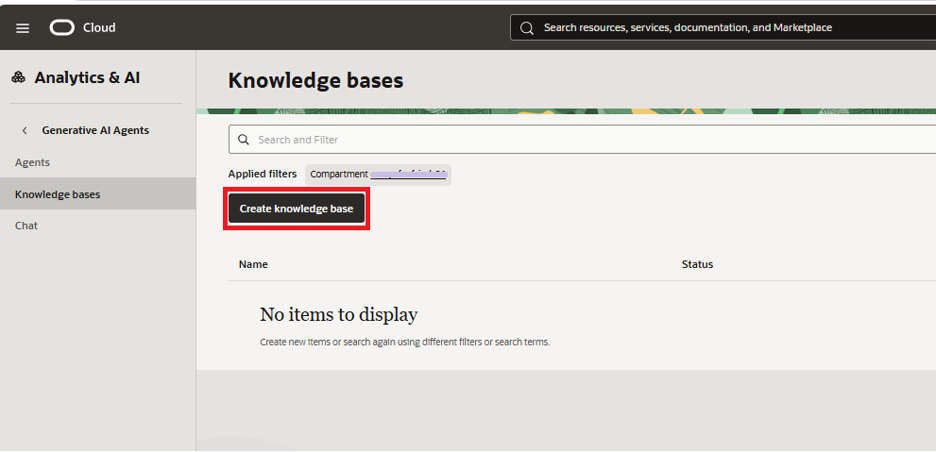
4. On the New knowledge base page, fill in the fields as shown below.
| Field | Value in this example |
| Name | dev-guidelines-kb |
| Compartment | The compartment where you want the knowledge base |
| Description | Development guidelines and coding standards for APEX, PL/SQL and REST APIs |
| Data store type | Database AI Vector Search |
| Database tool connection compartment | The compartment that holds the connection from Step 4 |
| Database tool connection | The connection you created in Step 4 |
| Vector search function | RETRIEVE_DEV_GUIDELINES (the function from Step 3) |
5. Click Test connection to confirm the agent service can reach the database.
6. Click Validate function behaviour. This runs your function against a sample query and checks that it returns the required columns (DOCID, BODY, SCORE). Fix any error it reports before continuing. Click Create. The knowledge base appears in the list and moves to the Active state.
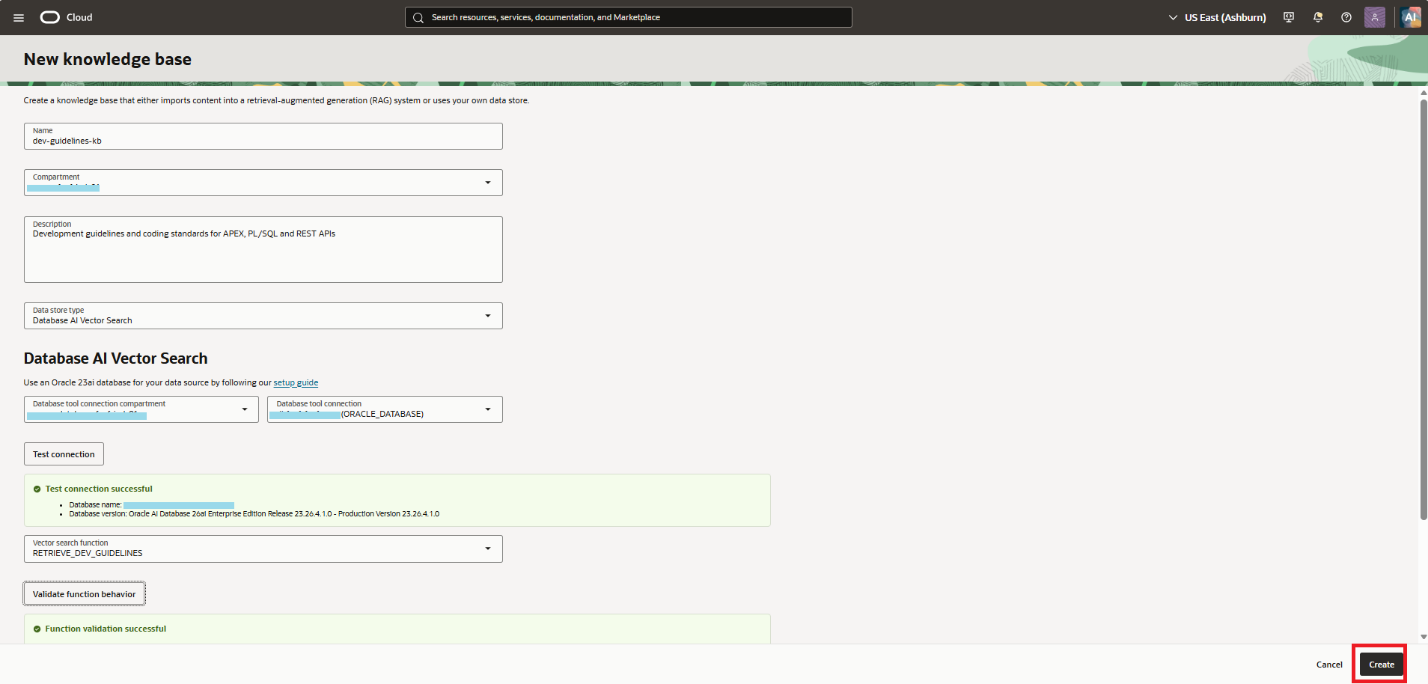
Step 6: Create the Agent and Write the Routing Instructions
The agent is the single-entry point for users. It owns both tools and, for every question, decides which tool to call. That decision is driven by the routing instructions you write here, together with each tool's routing description (added in the next steps).
1. In Generative AI Agents, click Agents, then click Create agent.
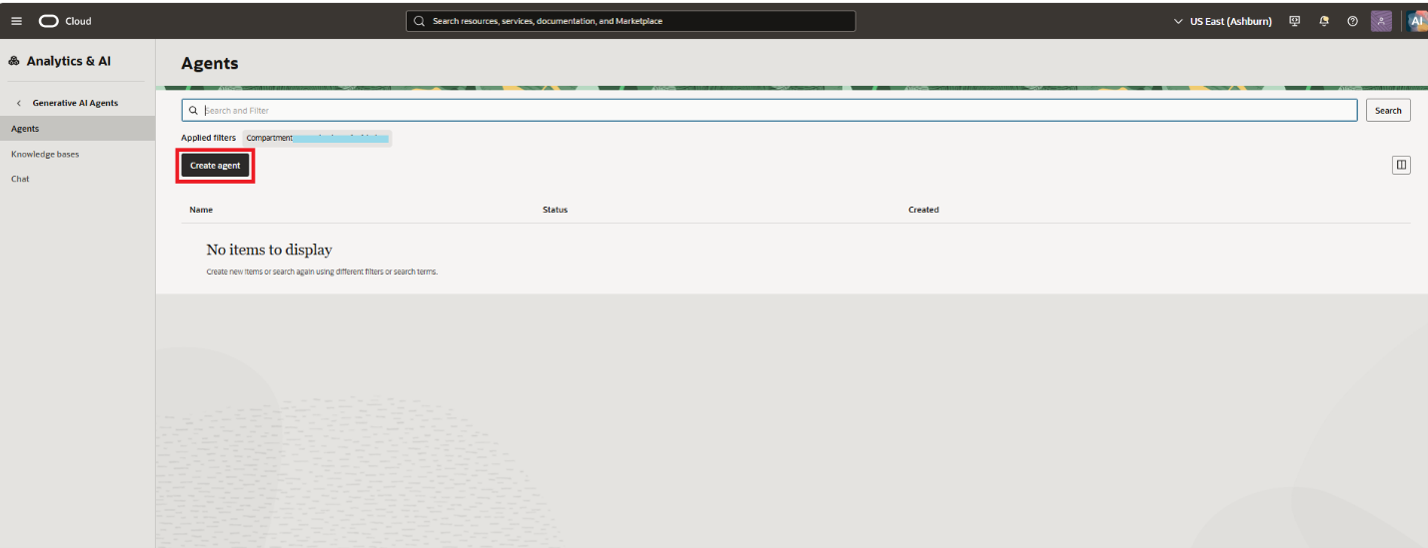
2. On the Basic information step, enter the fields below.
| Field | Value in this example |
| Name | Engineering Assistant |
| Compartment | The compartment where you want the agent |
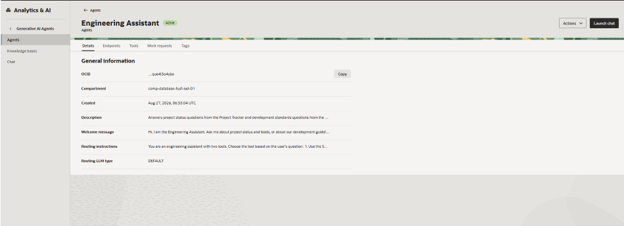
| Description (optional) | Answers project status questions from the Project Tracker and development standards questions from the Developer Guidelines |
| Welcome message (optional) | Hi, I am the Engineering Assistant. Ask me about project status and leads, or about our development guidelines and coding standards. |
| Routine instructions | See below |
| Routing LLM type | Default (Llama 3.3 70B), or choose another model based on your needs |
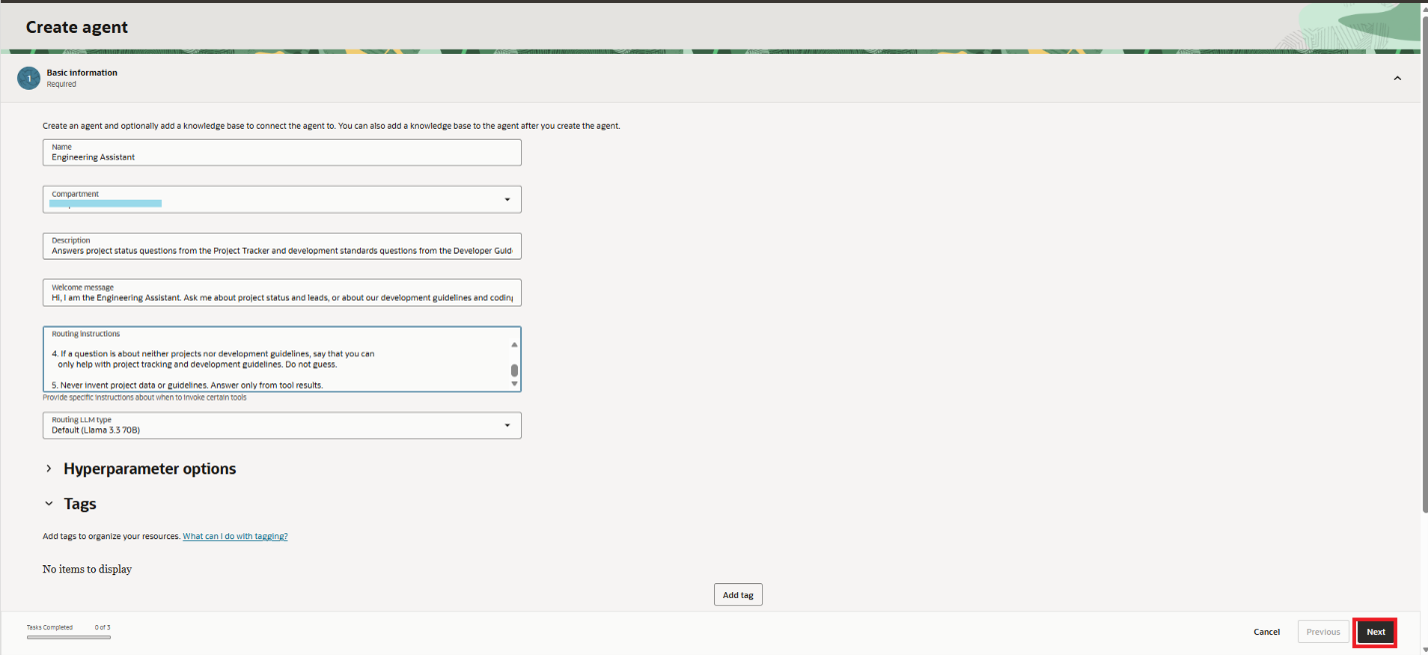
Routing Instructions
Good routing instructions name each tool, say what data it owns, and say what to do when a question fits both or neither. Paste this into the Routing instructions field:
You are an engineering assistant with two tools. Choose the tool based on the user's question.

1. Use the SQL tool when the question is about projects: project names, project leads, status, start dates, end dates, counts, delays or deadlines. This data lives in the PROJECT_TRACKER table. Examples: "Which projects are in progress?", "Who leads the Inventory REST API project?", "How many projects end this year?"

2. Use the RAG tool when the question is about development guidelines, coding standards or best practices for Oracle APEX, PL/SQL or REST APIs. Examples: "What are our PL/SQL coding standards?", "How should I handle HTTP errors?"

3. If a question needs both (for example, "Who leads the REST API project and what standards should they follow?"), call both tools and combine the answers.

4. If a question is about neither projects nor development guidelines, say that you can only help with project tracking and development guidelines. Do not guess.

5. Never invent project data or guidelines. Answer only from tool results.
Two habits make routing reliable. First, give concrete example questions, because the routing LLM matches the user's wording against them. Second, state the fallback behaviour, so out-of-scope questions get a clear refusal instead of a made-up answer.
3. Optionally expand Hyperparameter options to adjust settings such as temperature. We leave them at the defaults.
4. Click Next to move to the tools step.
Step 7: Add the RAG Tool
The RAG tool answers questions from your development guidelines, using the knowledge base from Step 5. Its routing description is what the agent reads when deciding whether this tool fits a question, so write it as a clear statement of when to use it.
1. On the Add tool step, click Add tool.
2. Select RAG as the tool type.
3. Fill in the RAG configuration as shown below.
| Field | Value in this example |
| Name | Developer_Guidelines_RAG |
| Routing description | See below |
| Custom instructions | See below |
| Knowledge base | dev-guidelines-kb (select it in the Add knowledge bases list) |
Routing Description
Use this tool to answer questions about development guidelines, coding standards and best practices for Oracle APEX, PL/SQL and REST API development. Use it for questions such as "What are our PL/SQL coding standards?" or "How should I validate user input in APEX?".

Do not use it for project status, project leads or dates.
Custom Instructions
Answer only from the guidelines retrieved. Present the answer as a short list of rules and mention the title of the guideline document the rules came from. If the retrieved guidelines do not cover the question, say that no matching guideline was found.
4. In Add knowledge bases, confirm the compartment, then tick the checkbox next to your knowledge base. Only knowledge bases in the Active state can be selected.
5. Click Add tool.
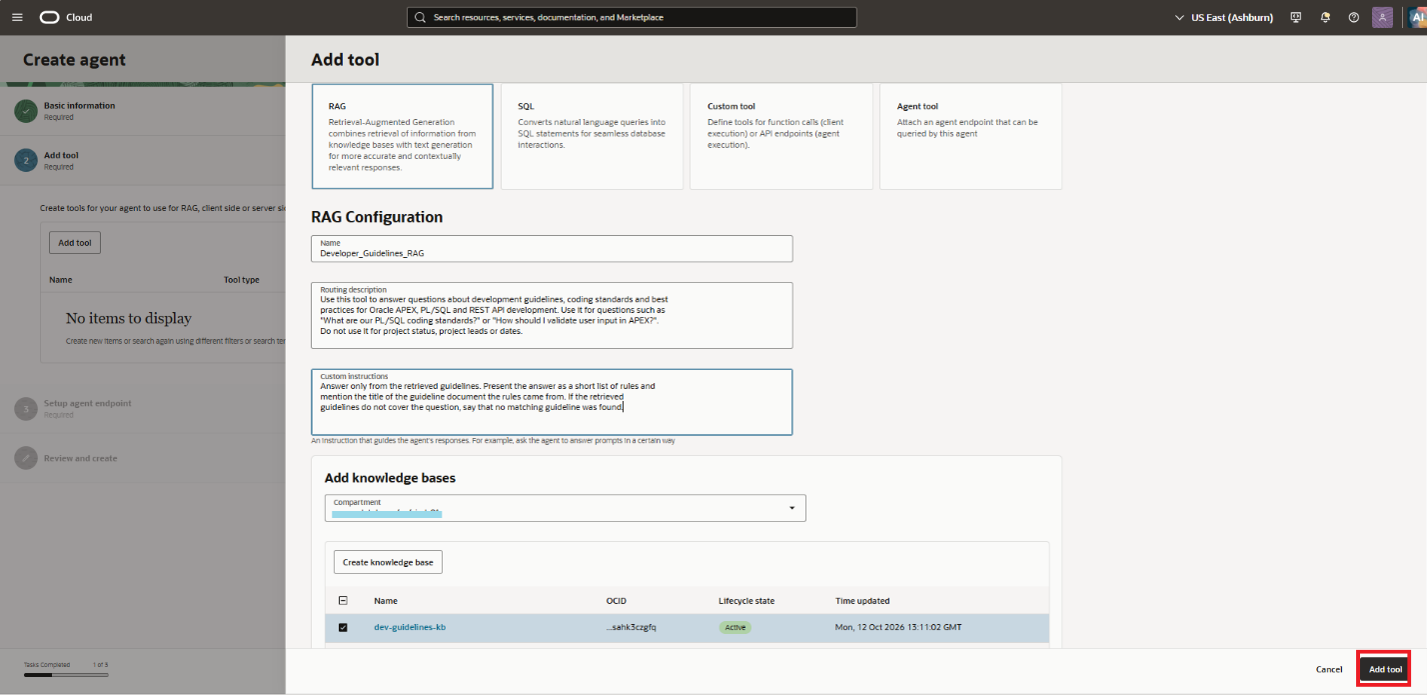
The RAG tool now appears in the tools list with the type RAG.
Step 8: Add the SQL Tool
The SQL tool turns a natural language question into an Oracle SQL SELECT statement, runs it through your database connection, and returns the result. To generate correct queries, it needs to know your schema, so most of this step is about giving the model good context.
1. On the tools step, click Add tool again.
2. Select SQL as the tool type.
8.1 Name and Routing Description
| Field | Value in this example |
| Name | Project_Tracker_SQL |
| Routing description | See below |
Use this tool to answer questions about projects by querying the PROJECT_TRACKER table.

Use it for project names, project leads, status (Not Started, In Progress, On Hold,
Completed), start dates, end dates, counts and deadlines. Examples: "Which projects are in progress?", "Who leads the HR Onboarding App?", "List projects ending before 2027".

Do not use it for coding standards or development guidelines.
8.2 Database Schema (inline)
Under Schema metadata, select Inline and paste the DDL of the projects table. The agent uses it to know which tables, columns and data types exist. Only include the table the SQL tool should query. Do not include DEVELOPER_GUIDELINES, which belongs to the RAG tool.
CREATE TABLE project_tracker (project_id NUMBER PRIMARY KEY,project_name VARCHAR2(200) NOT NULL,project_lead VARCHAR2(100) NOT NULL,status VARCHAR2(30) NOT NULL,start_date DATE,end_date DATE);
8.3 In-Context Learning Examples (inline)
Under In-context learning examples, select Inline and provide sample questions with the SQL you want generated for each. These examples teach the model your column names, status values and preferred query style. Add a handful that covers filtering, counting, sorting and date logic.
Question: List all projects that are currently in progress.SQL: SELECT project_name, project_lead, start_date, end_dateFROM project_trackerWHERE status = 'In Progress';Question: Who is the lead of the Inventory REST API project?SQL: SELECT project_leadFROM project_trackerWHERE LOWER(project_name) = LOWER('Inventory REST API');Question: How many projects are there in each status?SQL: SELECT status, COUNT(*) AS project_countFROM project_trackerGROUP BY status;Question: Which projects are overdue?SQL: SELECT project_name, project_lead, end_dateFROM project_trackerWHERE end_date < TRUNC(SYSDATE)AND status <> 'Completed'ORDER BY end_date;Question: Show all projects led by Anita Rao.SQL: SELECT project_name, status, start_date, end_dateFROM project_trackerWHERE LOWER(project_lead) = LOWER('Anita Rao');Question: Which projects start after October 2026?SQL: SELECT project_name, project_lead, start_dateFROM project_trackerWHERE start_date > DATE '2026-10-31'ORDER BY start_date;
8.4 Description of Tables and Columns (inline)
Under Description of tables and columns, select Inline and describe what each table and column means. Column names alone rarely say that STATUS holds only four values, or that END_DATE is a planned date. Plain descriptions close that gap.
Table PROJECT_TRACKER: one row per software project tracked by the engineering team.Columns:- PROJECT_ID: unique identifier of the project.- PROJECT_NAME: name of the project, for example 'Customer Portal Revamp'.- PROJECT_LEAD: full name of the person leading the project.- STATUS: current state of the project. Allowed values: 'Not Started', 'In Progress','On Hold', 'Completed'.- START_DATE: date the project started or is planned to start.- END_DATE: planned completion date. A project is overdue when END_DATE is in the pastand STATUS is not 'Completed'.
8.5 Model Customisation, Dialect and Database Connection
| Field | Value in this example |
| Model customization | Large (choose Small, Large based on the complexity of your schema and queries; larger models handle harder queries but respond slower) |
| Dialect | Oracle SQL |
| Database tool connection compartment | The compartment where your connection exists |
| Database tool connection | The connection you created in Step 4 |
Then turn on the two options that make the tool useful in practice:
- Enable SQL execution: the tool runs the generated query against your database and returns real rows. With it off, the agent only returns the SQL text.
- Enable self-correction: if the generated query fails (for example, a syntax error), the tool reads the error and retries with a corrected query.
8.6 Custom Instructions
Custom instructions apply extra rules to every query the tool generates. Paste the following into the Custom instructions field:
Generate only SELECT statements and use Oracle SQL syntax.

Query only the PROJECT_TRACKER table.

Match text values such as project names and project leads case-insensitively with LOWER().

Use the exact status values: 'Not Started', 'In Progress', 'On Hold', 'Completed'.
Treat a project as overdue when END_DATE is before today and STATUS is not 'Completed'.

Select only the columns needed to answer the question and never use SELECT *.

Limit results to 50 rows unless the user asks for more.
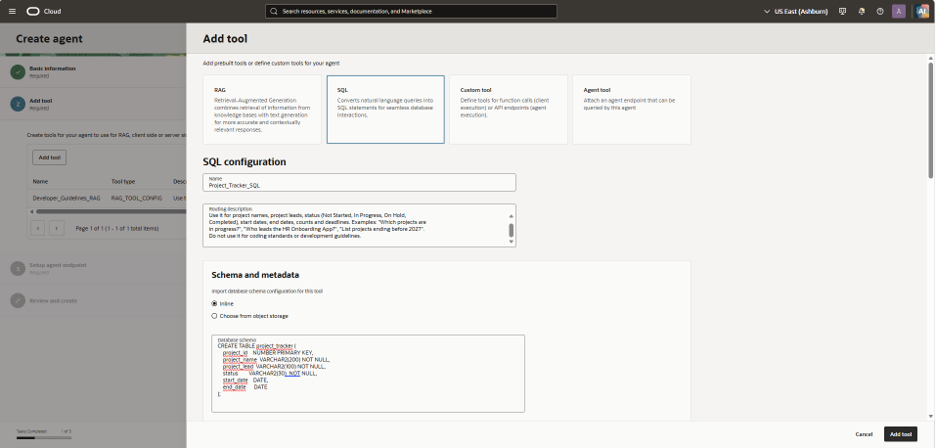
Click Create tool. The tool is validated when you create it, and creation fails if the schema is invalid. Both tools should now appear in the tools list, one of type RAG and one of type SQL.
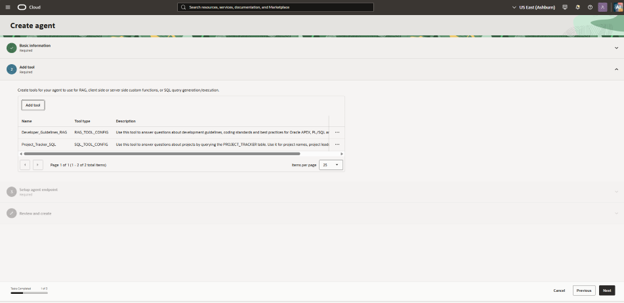
Step 9: Set Up the Agent Endpoint and Create the Agent
With both tools added, click Next to reach Setup agent endpoint. An endpoint is the access point that applications and the Chat page use to talk to the agent. This step also holds human-in-the-loop and guardrail settings, which we leave at their defaults for this walkthrough:
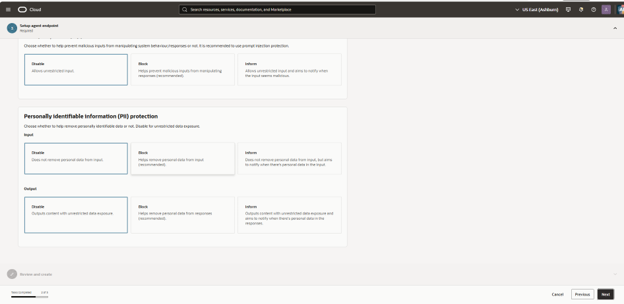
Click Next to reach Review and create, check the summary of the agent, both tools and the endpoint, and click Create.
The agent starts in the Creating state. Wait until it shows Active, which usually takes 2 to 5 minutes. You can only chat with the agent once the agent and its endpoint are both Active.
Step 10: Chat With Your Agent
Once the agent is Active, open Chat in the left menu of Generative AI Agents, select your agent and endpoint, and start asking questions.
If the Agent Picks the Wrong Tool
Routing problems are almost always fixable by editing text, not by changing any settings:
-
Add the missed question as an example in the routing instructions or in the tool's routing description.
-
Make the descriptions more distinct. Each should say which data it owns and what it must not be used for.
-
If the RAG answer misses a guideline, check that its embedding exists and that the function returns the expected rows when you test it directly.
Conclusion
You now have one OCI Generative AI Agent that reads structured project data through a SQL tool and unstructured guidelines through a RAG tool and chooses between them from the wording of the question. The pieces that make it work are a clean vector search function, tool descriptions that say exactly when each tool applies, and routing instructions with concrete examples and a fallback.
Contact DSP to explore how Oracle Cloud Infrastructure (OCI) can help your organisation build intelligent AI agents and unlock greater value from your data.